
Right now, you can set an image for a category. If that category has a sub-category, you can set it for the sub-categories, if there are sub-sub-categories, you can set the image for the sub-sub-categories.
Here is how for Category:
- Login to the admin
- Click on 'Store Editor'
- Click on the store you want to edit
- In the store editor, click on 'Categories'
- Click on the category you want to edit
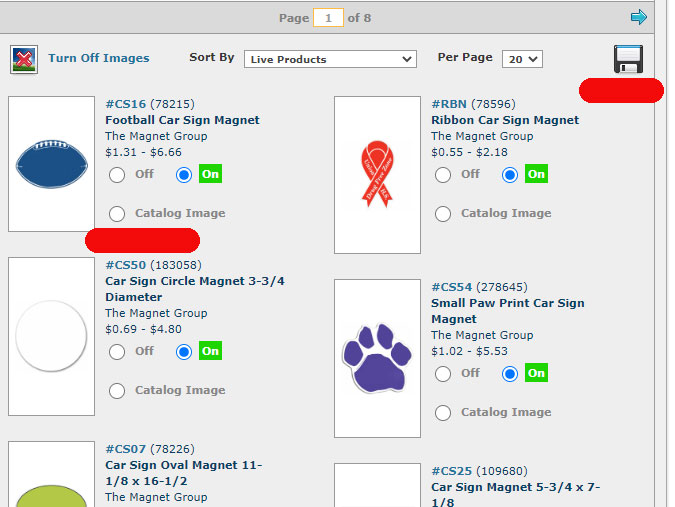
- You will see a list of products. Find the product you want to set and click on 'Catalog Image'.
- Click Save.
Sub-Categories
- Login to the admin.
- Click on 'Store Editor'.
- Click on the store you want to edit.
- In the store editor, click on 'Categories'
- For the category you want to work on, click on the downward pointing arrow to the left of the category. Now you will see all the subdomains.
- Click on a subdomain you want to set.
- You will see a list of products. Find the product you want to set and click on 'Catalog Image'.
- Click Save.
Sub-Sub-Categories
- Login to the admin.
- Click on 'Store Editor'
- Click on the store you want to edit.
- In the store editor, click on 'Categories'
- For the category you want to work on, click on the downward pointing arrow to the left of the category. Now you will see all the subdomains.
- Click on the green downward pointing arrow to the left of the sub-category.
- Click on the Sub-Sub-Category you want to set.
- You will see a list of products. Find the product you want to set and click on 'Catalog Image'.
- Click Save.
Comments
0 comments
Article is closed for comments.